

Porta Bridge RossTalk Integration
Porta Bridge is used as the communication gateway for Porta to connect to other processes, such as Designer(d3 software), MOS, RossTalk/Chyron/GPI.
The External Commands Panel is for receiving commands from external trigger sources including
- RossTalk
- Connection: TCP socket
- Format: Plain-text commands following the RossTalk protocol specification
- Used to receive trigger commands from Ross Video switchers and compatible control systems
- Chyron (CII – Chyron Intelligent Interface)
- Connection: TCP socket
- Format: Plain-text commands following the Chyron CII protocol specification
- Used to receive trigger commands from Chyron-compatible character generators and control systems
- GPI (General Purpose Interface)
- Connection: Serial (hardware)
- Format: Electrical signal via a physical switcher board connected to a SeaLevel GPIO card installed in the host computer
- Requirement: A SeaLevel GPIO card must be installed — this protocol will not function without one
How to connect to Porta
Section titled “How to connect to Porta”Step 1:
- Ensure Porta Configuration: Navigate to Window->Porta and make sure that the API URL and Porta API Key are filled in correctly.
- Socket Server URL : Location of the Socket Server. This can be found by going to Porta Interface->File->My Account->Integrations and double click “Socket Server” to reveal the url.
- Porta API Key: This can be found by going to Porta Interface->File->My Account->Integrations and double click “API Key” to reveal the key.
Step 2:
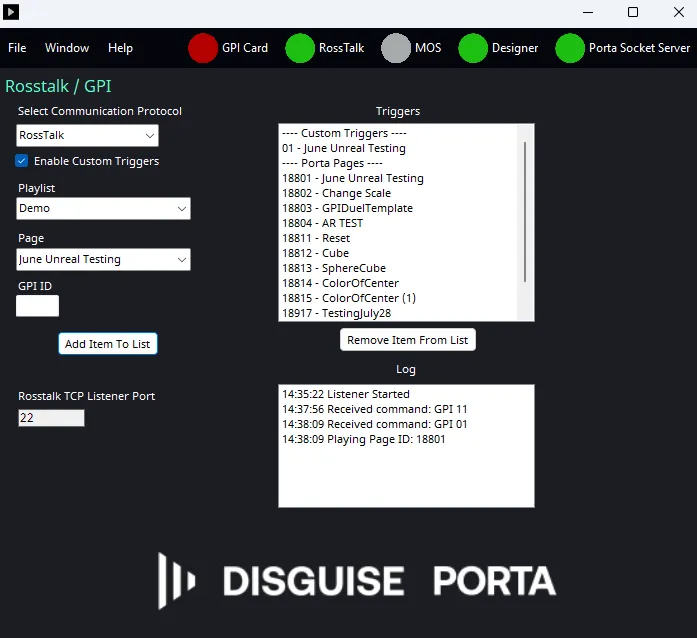
- Specify Rosstalk/Chyron configuration: Navigate to Window-> RossTalk/GPI RossTalk/Chyron TCP Listener Port: Specify the port to listen for any RossTalk Command; the default is 7788.
- Log: It shows the running log of receiving GPI ID for troubleshooting/monitoring purpose.
Testing the connection in Porta
Section titled “Testing the connection in Porta”Upon successful connection to RossTalk/Chyron or GPI Command, the log should record
“Timestamp:Received command: GPI ##”
If the command was attached to a trigger it will show,
“Timestamp:Received Playing Page ID: #####”
The command will be sent to Porta and the corresponding playlist/page will be loaded.
Custom Triggers
Section titled “Custom Triggers”By default, the page ID is used to trigger a page. However, you can also use custom triggers.
To set up a custom trigger, make sure you have selected the option to Enable custom triggers. Once you have done that you will have the option to add custom triggers to your list. You will see the new options below.
- Playlist/Page: Drop down menus that contain playlists and their respective pages, which should be loaded from Porta Database automatically
- GPI ID: User can type in specific GPI ID to link with specific playlist and page
- Add Item To List: User can add the pair of GPI ID <> Playlist & Page. The pair then should appear in the “GPI/Ross Talk Trigger List” for reference.
- Remove Item From List: User can select the pair of GPI ID <> Playlist & Page to delete.
Selecting a Playlist, Page, and GPI ID, then clicking Add Item To List will add the trigger to the list. This allows you to trigger a specific playlist and page based on the GPI ID you set up.
Note: The GPI ID must be unique and must be a numeric value.
Configuring a GPI trigger requires a SeaLevel GPI (GPIO) card installed in the host machine.
To verify the card is functioning:
- Click the “GPI Card” icon.
- Select “Test”.
If the test fails:
- Confirm the card is properly seated and connected.
- Ensure the correct drivers are installed and up to date.
- Verify the hardware is recognised by the operating system.
Trigger Configuration
Section titled “Trigger Configuration”GPI operation requires Custom Triggers to be enabled.
When a GPI input is activated, the SeaLevel card sends a GPI ID to Porta Bridge. The received GPI ID is then matched against the configured Custom Trigger list, and the associated playlist and page are loaded.
Each GPI trigger also includes a state selection dropdown:
- Up (High)
- Down (Low)
This defines which signal state transition will activate the mapped trigger.
RossTalk
Section titled “RossTalk”RossTalk is a plain-text-based protocol that allows control of the switcher from an external device. RossTalk commands are sent to the Porta Bridge. Commands using the GPI xx syntax will trigger the playlist and page linked to the GPI ID within the Custom Trigger list.
Chyron Intelligent Interface (CII)
Section titled “Chyron Intelligent Interface (CII)”Chyron is a protocol that allows control of the switcher from an external device. Similar to RossTalk, Chyron commands are sent to Porta Bridge. Commands using the Play/{Page} syntax will trigger the playlist and page linked to the GPI ID.