

Generating Diagnostic Archives
d3Manager allows you to create diagnostic zip archives, which bundle together the files from the last 30 days. These are required by Disguise Support to investigate software, system, and project-related issues.
When contacting Disguise Support, we recommend sending a Project Diagnostic wherever possible, as this also includes a System Diagnostic.
Diagnostic types
Section titled “Diagnostic types”System diagnostic
Section titled “System diagnostic”A System Diagnostic contains machine-level information and logs, including:
- Designer console logs
- Designer software crash dumps
- Windows Event Logs
- Installed applications
- License logs
- Disguise OS information
sysinfodata
Note: System Diagnostics do not include Windows memory dump or minidump files due to their potentially large size.
Project diagnostic
Section titled “Project diagnostic”A Project Diagnostic includes everything in a System Diagnostic, Console files, plus:
- A skeleton Designer project file
The skeleton project excludes the following large media directories:
VideoFileDxTexture
If media may be relevant to your issue, please zip and send these folders separately.
Important note on Windows blue screen errors
Section titled “Important note on Windows blue screen errors”Our diagnostic archives do not include Windows memory dump files.
If you experience a Windows Blue Screen, please also zip and send the following files separately, if present:
C:\Windows\MEMORY.DMPC:\Windows\Minidump
Create a diagnostic zip on your local machine
Section titled “Create a diagnostic zip on your local machine”- Open d3Manager.
- Select the relevant project (for Project Diagnostics).
- Go to the Help menu and choose Create project/system diagnostic.
- The diagnostic zip file will be created automatically.
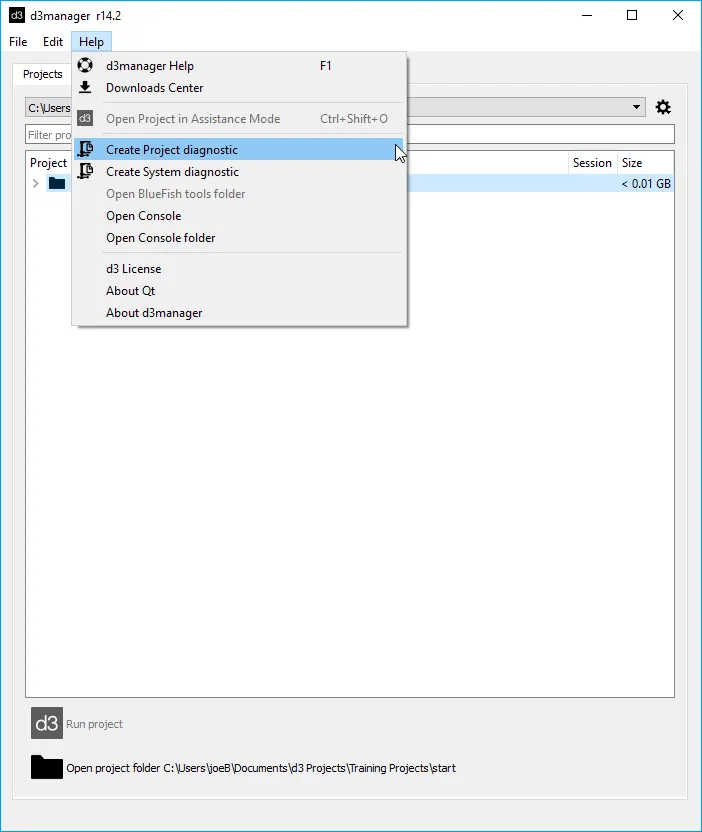
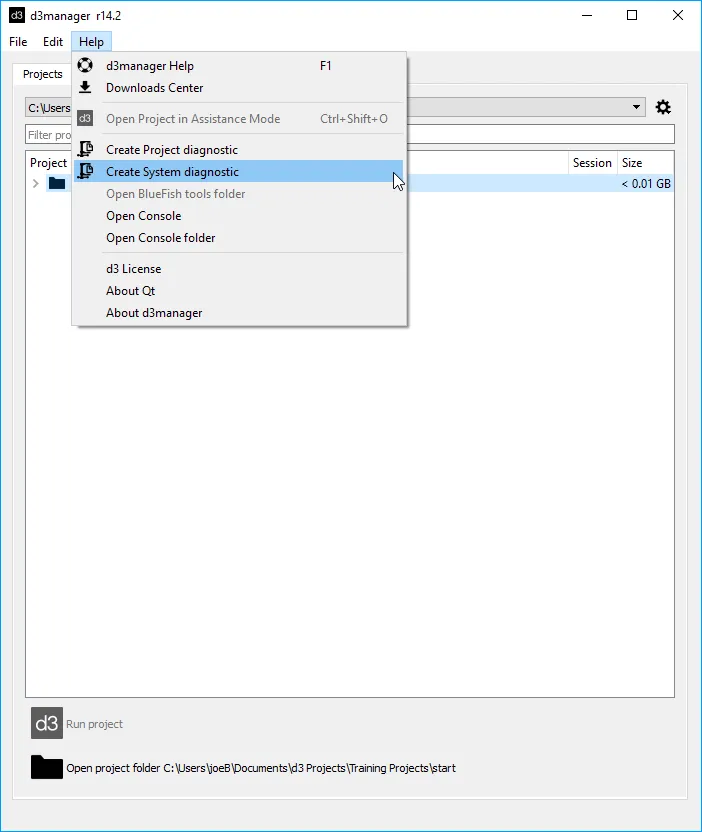
Create a system diagnostic for a remote machine
Section titled “Create a system diagnostic for a remote machine”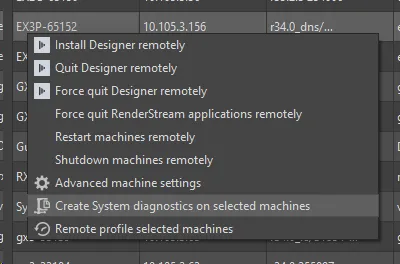
- Open d3Manager.
- Go to the Network tab.
- Select one or more machines you would like to create diagnostics from.
- Right-click on the selection.
- Click Create System Diagnostic on selected machines.
- Select a folder on the local machine for the diagnostics to be downloaded to.
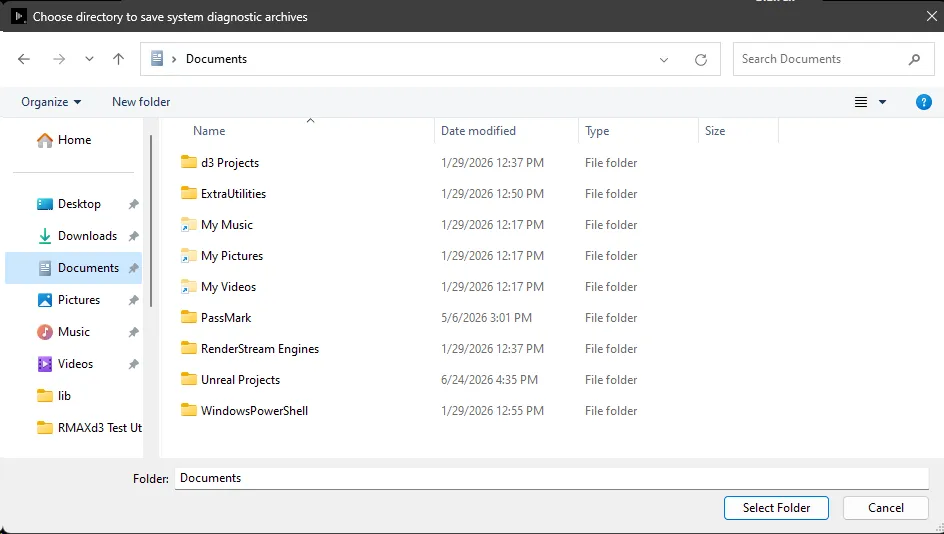
The diagnostic zip file will also be placed in the local AppData directory on the remote machine:
%localappdata%/d3/SystemDiagnostics
Accessing the remote system diagnostic
Section titled “Accessing the remote system diagnostic”The quickest way to get to this is as follows:
- In the Network tab of d3Manager, double-click the machine where you created the remote System Diagnostic.
- Navigate to the d3 Logs section.
- Open the System Diagnostic logs.