

ARRI Skypanels Setup
This guide explains how to configure ARRI Skypanels for control from the Disguise platform using Mode 24. The setup applies to Skypanel 30C, 60C, 120C, and 360C.
1. Selecting the Correct Skypanel Mode
Section titled “1. Selecting the Correct Skypanel Mode”To control any Skypanel model from Disguise
Section titled “To control any Skypanel model from Disguise”-
Set the fixture to Mode 24 – LE CCT & RGBW (8-bit). This mode provides full RGBW control.
-
Ensure Art-Net is enabled so the panel can receive DMX data from Disguise.
Mode 24 Channel Map (8-bit)
Section titled “Mode 24 Channel Map (8-bit)”Mode 24: LE CCT & RGBW, 8 bit resolution per function
Section titled “Mode 24: LE CCT & RGBW, 8 bit resolution per function”| DMX Channel | Value Range | Percent | Function |
|---|---|---|---|
| 1 | 0–255 | 0–100 | Dimmer closed → open |
| 2 | 0–255 | 0–100 | Color temperature CCT 2,800 K → 10,000 K |
| 3 | 0–10 11–20 21–119 120–145 146–244 245–255 | 0–4 5–8 9–47 48–57 58–96 97–100 | Green–Magenta Point neutral / no effect full minus green −99% → −1% neutral / no effect 1% → 99% full plus green |
| 4 | 0–255 | 0–100 | Crossfade to Color White → RGBW color |
| 5 | 0–255 | 0–100 | Red Intensity 0% → 100% |
| 6 | 0–255 | 0–100 | Green Intensity 0% → 100% |
| 7 | 0–255 | 0–100 | Blue Intensity 0% → 100% |
| 8 | 0–255 | 0–100 | White Intensity 0% → 100% |
2. Disguise Configuration
Section titled “2. Disguise Configuration”This example uses the Skypanel 60C, but the steps apply to all models.
Only the fixture size and resolution differ:
| Model | Physical Size (approx.) | Resolution (engines) |
|---|---|---|
| 30C | ~0.35 × 0.3 m | 1 × 1 |
| 60C | ~0.645 × 0.3 m | 2 × 1 |
| 120C | ~1.29 × 0.3 m | 4 × 1 |
| 360C | varies | 4 × 3 |
Create a new DMX Light
Section titled “Create a new DMX Light”- Go to Stage → DMX Light.
- Click + to add a new DMX light.
- Set the size of the Skypanel 60C to 0.645 m × 0.3 m.
- Set the resolution according to your Skypanel model.
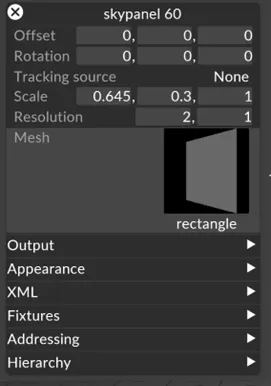
4. Fixture Configuration
Section titled “4. Fixture Configuration”-
Go to Fixture and create a new fixture type.
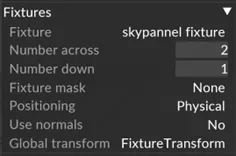
-
Set the number of channels to 8 (one RGBW engine).
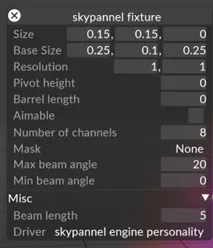
-
Set the fixture layout (number of engines):
- 30C → 1 × 1
- 60C → 2 × 1
- 120C → 4 × 1
- 360C → 4 × 3
5. Driver Setup (DMX Personality)
Section titled “5. Driver Setup (DMX Personality)”Create a new driver that maps each DMX channel:
- Channel 1 → Dimmer
- Channel 5 → Red
- Channel 6 → Green
- Channel 7 → Blue
- Channel 8 → White
All other parameters (including pan/tilt) should be set to 0.
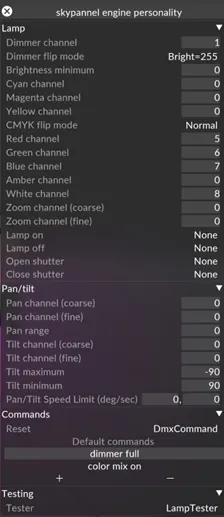
Required Commands for RGBW Mixing
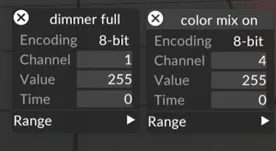
Section titled “Required Commands for RGBW Mixing”Create two commands in the driver:
- Set Dimmer (Ch. 1) → 255
- Set Crossfade to Color (Ch. 4) → 255
6. Addressing
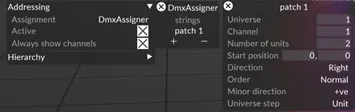
Section titled “6. Addressing”The addressing configuration allows Disguise to activate the DMX data and patch the fixture to a universe and channel.
- Enable Active to output DMX data.
If this is disabled, the fixture will receive no DMX. - Create a new Assigner and set:
- Universe
- Starting channel
- Number of units (engines):
- 30C → 1
- 60C → 2
- 120C → 4
- 360C → 12
7. Outputting DMX data
Section titled “7. Outputting DMX data”To output DMX to the Skypanel, set up a DMX device in Disguise.
Follow the instructions in our user guide:
Troubleshooting
Section titled “Troubleshooting”| Symptom | Likely Cause | Fix |
|---|---|---|
| Fixture stays white | Channel 4 not set to 255 | Check driver commands |
| No output | “Active” not enabled | Enable in Addressing |
| Colour incorrect | Wrong Skypanel mode | Set Mode 24 |
| Only part of fixture responds | Incorrect unit count | Verify resolution mapping |