

String Projector Control Device
The String Projector Control Device is intended for controlling external devices while optionally simulating their behaviour inside the visualiser.
Projector control can be simulated as well as output to real projectors. The intention is to be able to recall presets for the projectors that contain pan/tilt, zoom, focus, lens shift, intensity and projector configuration objects (for recalling different calibration states).
Configure the String Projector Control Device
Section titled “Configure the String Projector Control Device”Device setup
Section titled “Device setup”- Create a StringProjectorControlDevice.
- Associate the device with a projector.
- Create a control device if using the string control version.
- Assign the simulation configuration to the selected projector config.
- Create presets either via the ProjectorControl Editor or the layer preset editor. The former is the preferred workflow, as it allows for multi-edit.
Timeline keyframing
Section titled “Timeline keyframing”- Create a projector control layer.
- Create a mapping (group of projectors to control).
- Create presets for the projectors to recall as the timeline plays.
Configure the device
Section titled “Configure the device”- Define which projector is controlled by the device.
- Choose whether simulation configuration is enabled or disabled. This controls whether the projector will move in the stage or not.
- In the case of the String Projector Control Device, define a control device and create a corresponding serial, telnet or UDP device to send the data out of Designer.
- Configure any Default, Startup and Shutdown commands, as appropriate.
Configure presets
Section titled “Configure presets”ProjectorControlPresets can be created either through the ProjectorControl layer or through the String Projector Control Device Editor. Performing this functionality through the editor is a better choice as this editor fully supports multi-edit functionality, as well as converting hard values to presets for more time saving functionality.
- Open the String Projector Control Device Editor from the Device manager.
- Select each projector and apply the desired values. Either individually or by using the multi-edit functionality.
- Select multiple rows and use the Convert Selected Rows to Preset function, to store the contents of the selected rows into a preset that can be recalled later. For example - Home position, Position 1, Position 2 and so on.

Control the projector
Section titled “Control the projector”See ProjectorControl layer for more information.
Properties
Section titled “Properties”Projector
Section titled “Projector”- The virtual projector object in the visualiser.
Values
Section titled “Values”- Pan/Tilt, Focus, Zoom, Lens Shift (V/H), Intensity: the current values being sent to the external device. Modifying these values will cause the device to send out commands to the external device.
Simulation
Section titled “Simulation”- Simulation configuration — the projector configuration that the device modifies to simulate the behaviour of the external device. Always use a dedicated projector configuration for this as its settings will be overwritten by the simulation.
- Home rotation — the starting rotation when the device’s pan/tilt are at zero.
- Rotation speed (deg/s) — the animation speed of rotation between different pan/tilt values, in degrees per second.
- Pan Axis — the axis controlled by the pan value.
- Tilt Axis — the axis controlled by the tilt value.
Default Recall
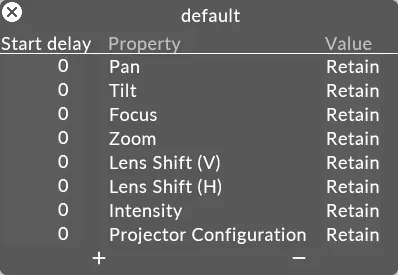
Section titled “Default Recall”- Recall — the default order of the commands sent to the device. This allows delays between starting the pan/tilt, focus, zoom and other actions.
For example, you may want to delay intensity moves for a set period of time to allow zoom, focus and position to be set before the projector is visible. The delay value is expressed in seconds.
The editor is capable of multi-edit functionality, so does not behave in the same way as a normal editor. See multi-edit for more information.
Device
Section titled “Device”- Control device — the network device (Serial, Telnet, UDP) that commands are sent over.
Commands
Section titled “Commands”- Default commands — string commands sent to the network device before any specific actions’ DMX commands.
- Startup commands — string commands sent to the network device when the projector control device is started or added from the device manager.
- Shutdown commands — string commands sent to the network device when the projector control device is stopped or removed from the device manager.
Common properties
Section titled “Common properties”Control strings for each of these projector control actions can be created. The range will be used to scale the current value before exposing it as a binary (%) or decimal ($) number.
Pan/tilt
Section titled “Pan/tilt”- Pan command — the string sent to the control device when the pan value changes.
- Pan range — the scaling range applied to the pan value before it is exposed to the command. Defaults to -90 to 90 degrees.
- Tilt command — the string sent to the control device when the tilt value changes.
- Tilt range — the scaling range applied to the tilt value before it is exposed to the command. Defaults to -90 to 90 degrees.
- Zoom command — the string sent to the control device when the zoom value changes.
- Zoom range — the scaling range applied to the zoom value before it is exposed to the command.
- Focus command — the string sent to the control device when the focus value changes.
- Focus range — the scaling range applied to the focus value before it is exposed to the command.
Lens Shift
Section titled “Lens Shift”- Vertical shift command — the string sent to the control device when the vertical lens shift value changes.
- Vertical shift range — the scaling range applied to the vertical lens shift value before it is exposed to the command.
- Horizontal shift command — the string sent to the control device when the horizontal lens shift value changes.
- Horizontal shift range — the scaling range applied to the horizontal lens shift value before it is exposed to the command.
Intensity
Section titled “Intensity”- Intensity command — the string sent to the control device when the intensity value changes.
- Intensity range — the scaling range applied to the intensity value before it is exposed to the command.