

Unreal Engine Settings
The Engine settings of a RenderStream Unreal asset control how the Unreal Engine workload is launched and behaves on the render nodes. This page describes each setting.
Open the Engine settings
Section titled “Open the Engine settings”- Open the RenderStream layer editor and right-click on the Workload name.
- In the Cluster Workload editor, ensure a RS Asset is selected, then right-click on the Asset name.
- In the Asset editor, right-click on the Engine settings property,
UnrealEngineSettingsResource.
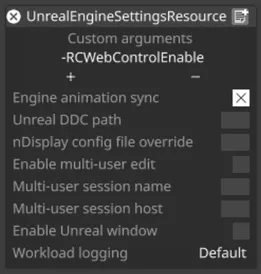
Settings
Section titled “Settings”Custom arguments
Section titled “Custom arguments”Extra command-line arguments appended when launching the Unreal workload.
Engine animation sync
Section titled “Engine animation sync”Uses one large nDisplay cluster to keep scene animation in sync across render nodes.
- Disguise-controlled parameters are always applied in sync regardless of this setting.
- Disguise cannot guarantee every engine feature synchronises correctly - this is an engine feature.
- Not used by RenderStream Local workloads.
Unreal DDC path
Section titled “Unreal DDC path”Location of the shared Derived Data Cache used by the workload. See DDC Setup for how to configure a shared cache.
nDisplay config file override
Section titled “nDisplay config file override”Override the auto-generated nDisplay configuration file with a custom file. The value is the filename (excluding the extension) of a config placed in the asset’s workload folder, <renderstream projects folder>\renderstream_workloads\unreal\<asset_name>\.
Multi-user editing
Section titled “Multi-user editing”Enable multi-user edit appends the command-line arguments to run the workload in Unreal’s multi-user mode; Multi-user session name and Multi-user session host identify the session and server to connect to. See Multi-User Editing for the full workflow.
Enable Unreal window
Section titled “Enable Unreal window”Shows the Unreal window on the render node (otherwise hidden). Intended for debugging only. The workload must be restarted before this takes effect.
Workload logging
Section titled “Workload logging”Controls how much the workload writes to its log. More logging helps diagnose problems, but the most detailed level produces a large volume of data and can reduce frame rate on heavy scenes. The workload must be restarted before a change takes effect.
- Off - suppresses all engine logging except errors, for maximum performance.
- Default - standard logging, recommended for normal operation. Includes nDisplay logs used to diagnose cluster formation, render-node connection and failover events; on a stable running cluster, log volume is low.
- Verbose - everything at maximum detail, including per-frame frame-lifecycle and cluster-synchronisation tracing and detailed RenderStream plugin activity. Produces thousands of log lines per second and can reduce frame rate on heavy scenes. Use only for deep debugging of synchronisation or timing problems.