

Managing Your Team
Managing your team in MyDisguise means building and maintaining your Organisation’s members: invite people, assign them a role, view your team, and remove members who no longer need access. It also covers the roles and permissions that control what each member can do.
View your team
Section titled “View your team”The Members tab lists everyone in your Organisation, with their name, email address, role, status and the date they joined.
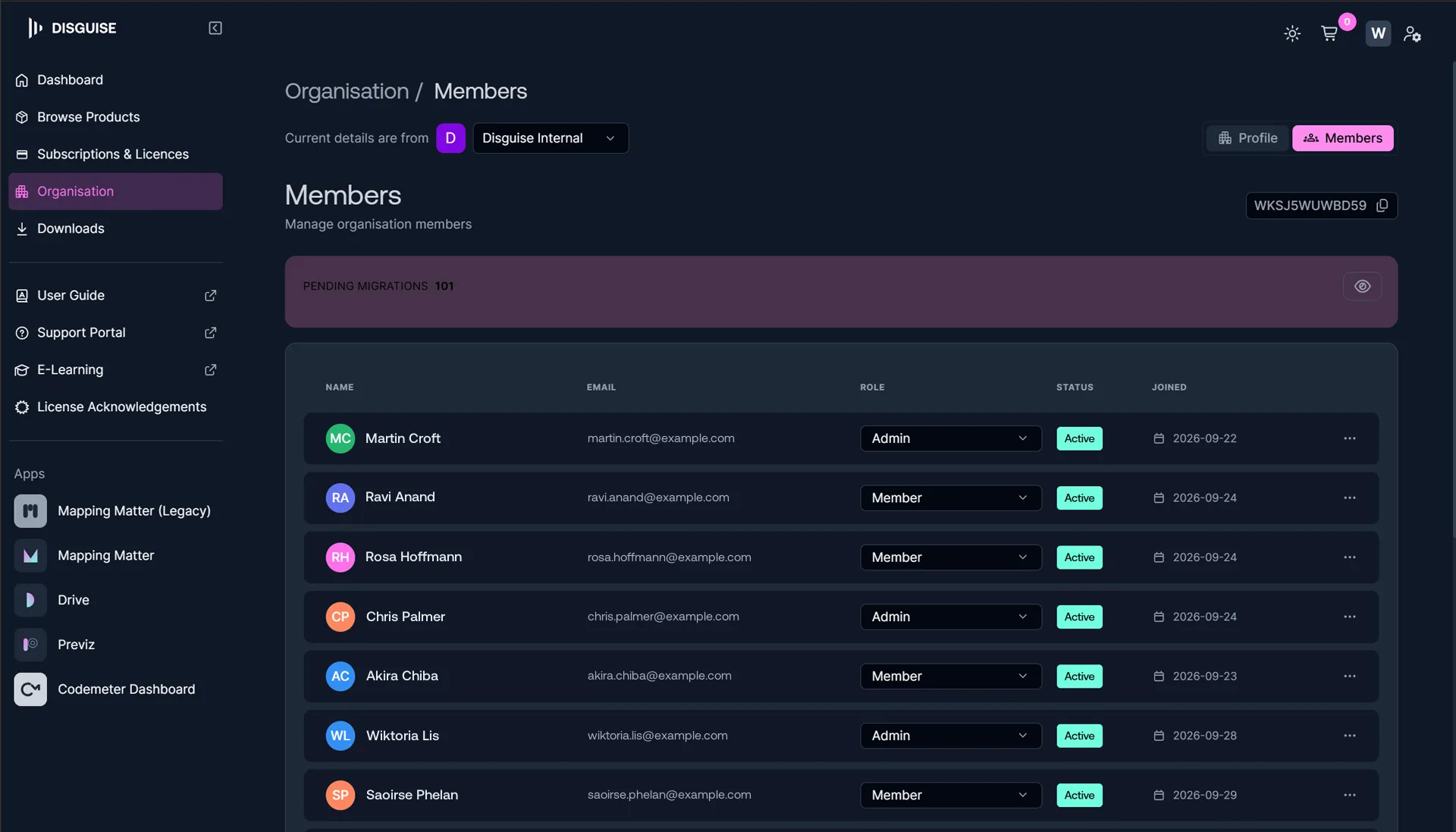
Two kinds of pending entry appear at the top of the list:
- Invitations you have sent that nobody has accepted yet.
- Requests to join, if you have enabled domain joining with approval. See Domain join requests.
Invite team members
Section titled “Invite team members”- Go to the Members tab.
- Select Invite Member.
- Enter the person’s email address.
- Choose the role you want to give them, either Member or Admin.
They receive an email invitation with instructions on how to join, and they appear in the members list straight away with a pending status.
If an invitation goes unanswered, you can resend it from the same list rather than starting again.
Assign a role to a team member
Section titled “Assign a role to a team member”Each person’s role is a dropdown in the Members tab, so you can change it in place without removing and re-inviting them.
Owners and Admins can change roles. An Owner is assigned automatically to whoever creates the Organisation, and Ownership can be transferred to someone else afterwards. The Owner role is not offered in the dropdown, so Member and Admin are the two choices. See Roles and permissions for what each one can do.
Someone who joins through a domain join request arrives as a Member. Anything beyond that is granted afterwards by an Owner or an Admin.
Transfer Ownership
Section titled “Transfer Ownership”Ownership moves from the Members tab rather than from the role dropdown. Identify the Organisation member you are transferring the ownership to, and click the menu (…) at the end of their row, then select Transfer ownership.
Remove team members
Section titled “Remove team members”Owners and Admins remove people from the Members tab.
Removing someone from the Organisation automatically unassigns any licenses they held, so those licenses are free to give to someone else. You do not need to unassign them first.
Membership
Section titled “Membership”Everyone in an Organisation is a member of it, whatever their role. The Members tab and the Member filter on Subscriptions & Licenses both list everyone, so an Owner appears there too.
Member is also the name of a role, the one with the fewest permissions. See Roles and permissions.
You can belong to more than one Organisation and move between them from the Organisation switcher. See Managing MyDisguise Organisations.
Roles and permissions
Section titled “Roles and permissions”Roles and permissions control what each member of your Organisation can see and do. Owners and Admins assign roles from the Members tab. There are three roles in a MyDisguise Organisation:
- Owner is assigned automatically to the person who creates the Organisation. An Owner has full administrative access, including purchasing subscriptions, managing licenses and members, assigning roles and permissions, and deleting the Organisation.
- Admin has administrative access to help manage the Organisation, including purchasing subscriptions, managing licenses, inviting and managing members, and assigning roles and permissions. An Admin cannot delete the Organisation or edit its settings.
- Member can access the products assigned to them through a license or seat, but cannot purchase subscriptions or manage licenses, members or Organisation settings.
Owner is not offered in the role dropdown, so Member and Admin are the only choices when you invite someone or change an existing member’s role. Ownership can be transferred to someone else afterwards.
Permissions by role
Section titled “Permissions by role”The table below lists common actions and whether each role can (✔️) or cannot (❌) perform them.
| Action | Owner | Admin | Member |
|---|---|---|---|
| Purchase subscriptions | ✔️ | ✔️ | ❌ |
| Change a subscription or cancel an upcoming renewal | ✔️ | ✔️ | ❌ |
| Add products or licenses to an existing subscription | ✔️ | ✔️ | ❌ |
| Assign and reassign licenses and seats | ✔️ | ✔️ | ❌ |
| Invite people and cancel invitations | ✔️ | ✔️ | ❌ |
| Remove people from the Organisation | ✔️ | ✔️ | ❌ |
| Assign roles and permissions | ✔️ | ✔️ | ❌ |
| Edit Organisation settings | ✔️ | ❌ | ❌ |
| Use the products assigned to them | ✔️ | ✔️ | ✔️ |
| Delete the Organisation | ✔️ | ❌ | ❌ |
Only an Owner can delete the Organisation or edit its settings. Owners and Admins share every other permission in the table above.