

Feedback
Mapping Matter is under active development and we read every report. The fastest route to the team is the Feedback button pinned to the far right of the viewport toolbar.
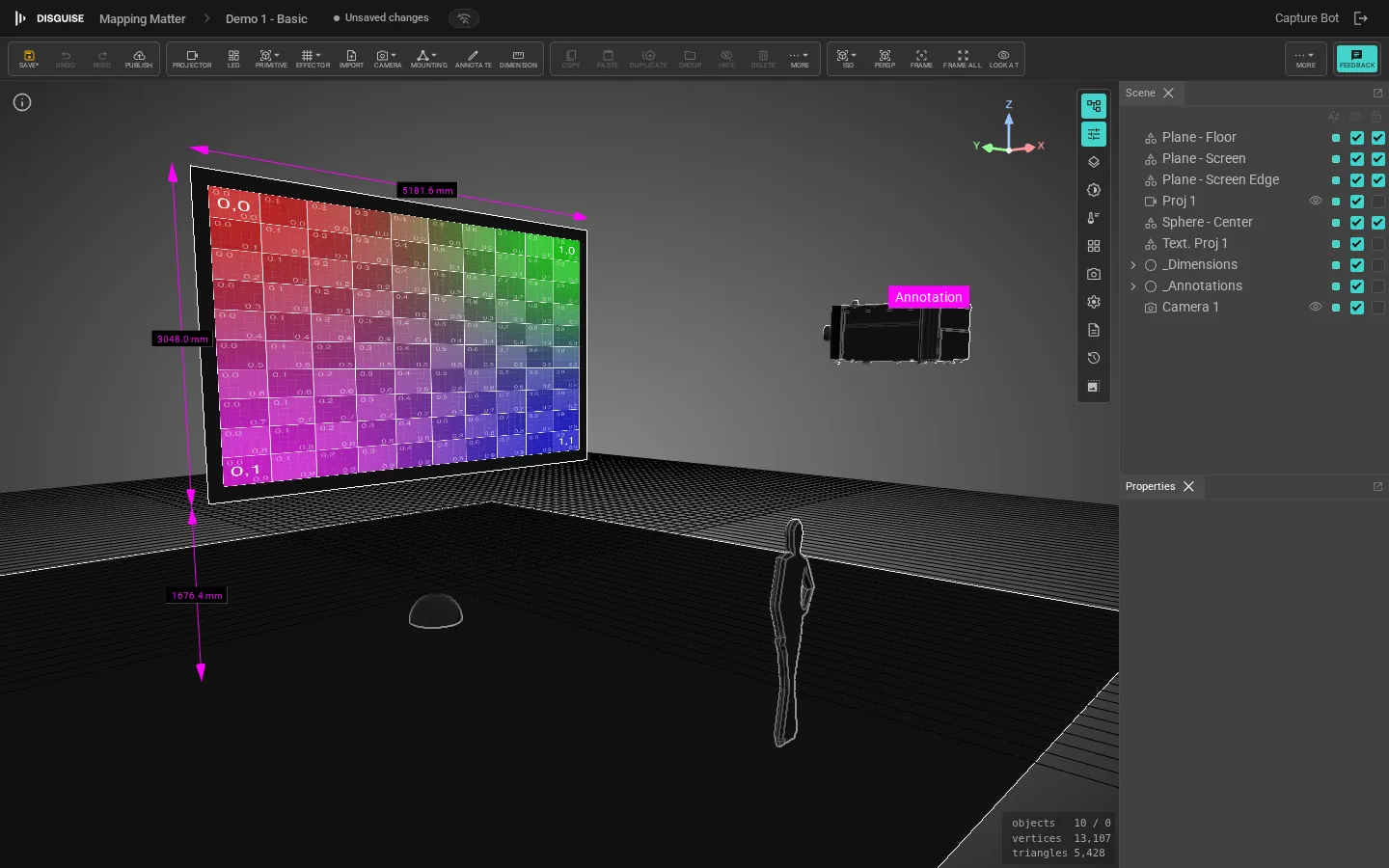
Submit a report
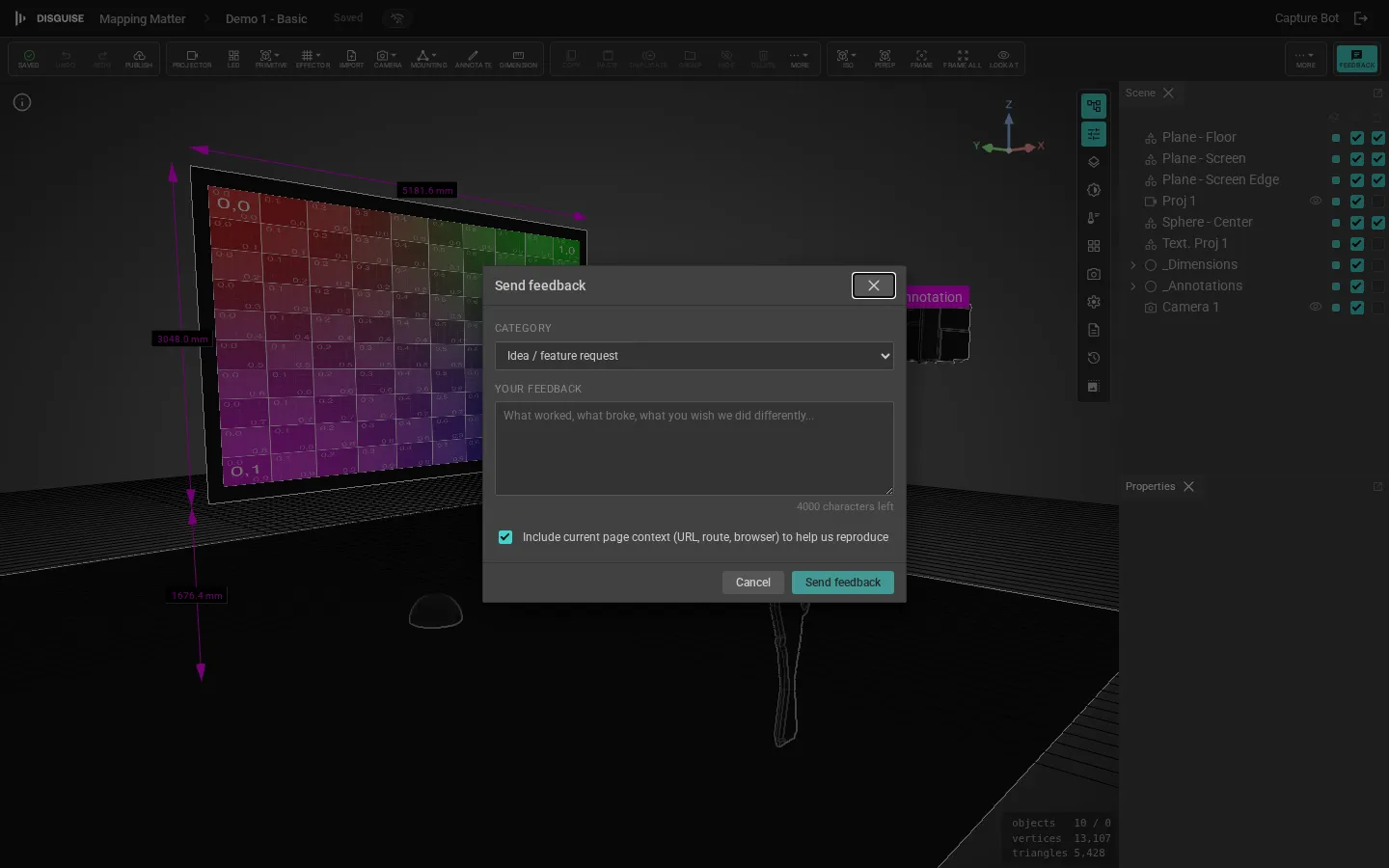
Section titled “Submit a report”Click Feedback to open the feedback form. Choose a category, write a description, and submit.
| Category | When to use it |
|---|---|
| Bug | Something didn’t work as expected. |
| Idea | Feature suggestion or enhancement. |
| Usability | Something works but is hard to find, slow, or confusing. |
| Praise | Tell us what’s working; this is the category we read most carefully. |
Report a problem with a library entry
Section titled “Report a problem with a library entry”If a catalogue projector has the wrong throw ratio, lumens or lens options (or you spot a similar issue on an LED tile or truss), open the library overlay and click the small flag icon on the offending card. A short dialog pre-fills the entry’s details so the report reaches the same triage queue with the right context. Use this rather than the general Feedback button whenever the problem is data on a specific catalogue item, so we can patch the model directly.
What is sent
Section titled “What is sent”Each submission includes:
- The text you wrote and the category you chose.
- Your Disguise Cloud user ID and the name of the project / scene you were in.
- The current URL, browser user-agent string, and Mapping Matter version.
- For library reports, the catalogue ID and the row’s current spec values.
- No scene content or screenshots. If a bug needs visual context, attach a screenshot in the form’s optional attachment field.
What happens next
Section titled “What happens next”Submissions land in the Disguise internal triage queue. A team member reviews each item, files a tracking ticket if it’s actionable, and may follow up by email, so use a valid Disguise Cloud account when reporting.
You don’t get an in-app reply. Status updates on individual reports are not currently exposed in Mapping Matter; product-wide changes are summarised in the release notes.